Mobile printer for a terminal: choosing the right pair
How to match a mobile printer to a terminal: ZPL/CPCL, Bluetooth or Wi-Fi, 2-4" width, carrying both. A checklist before you order.
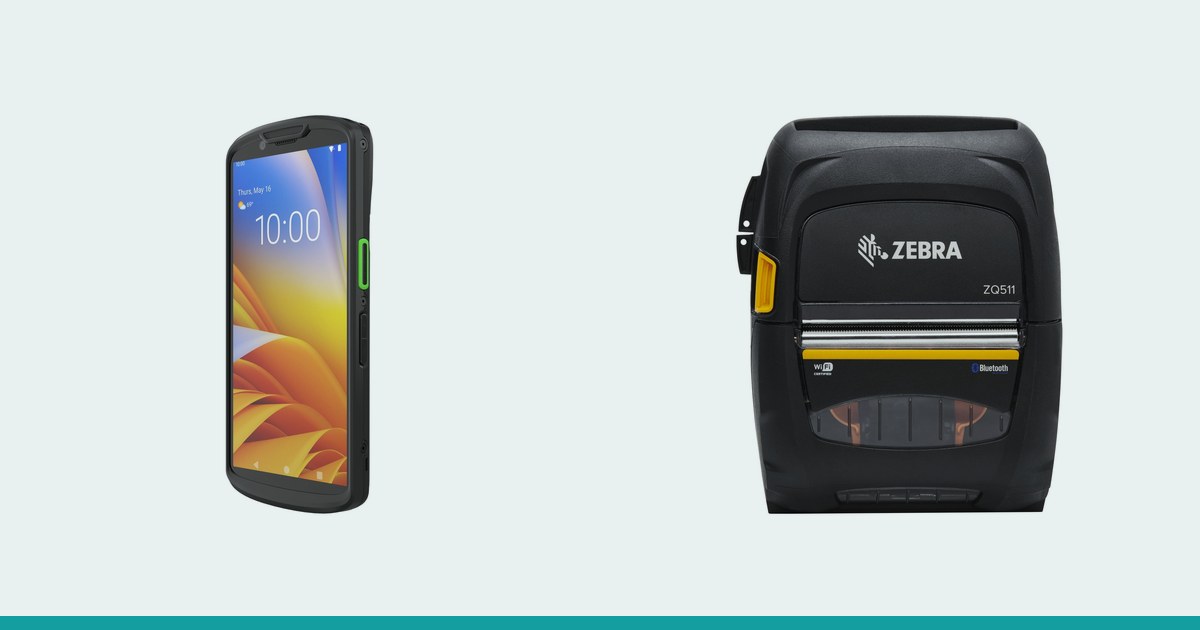
The terminal scans and confirms, the printer prints, and between them sits a link that is easy to overlook at purchase time. If the pair does not fit, operators end up re-pairing the printer every shift or hunting for a roll of the wrong width. Here is what to settle before choosing either device.
1. How the two devices talk
The terminal app sends the printer either a ready-made template or commands in a printer language. On mobile printers you mostly meet ZPL and CPCL: the Zebra ZQ511 and ZQ620 Plus accept both, while the TSC Alpha-30L runs TSPL-EZC and ESC-POS with ZPL, EPL and CPCL emulation. One thing matters to you: whatever language the app or the WMS generates must be understood by the printer without workarounds.
- Off-the-shelf app: check whether its vendor lists the printer or its language
- Custom-built app: ask the developer for the language and connection method before ordering
- Label templates: decide whether they live on the printer or are sent by the app each time
2. Bluetooth or Wi-Fi
Bluetooth is the usual choice for a "one operator, one printer" pair: you pair the two once and they travel together. Terminals such as the Zebra TC53e (Bluetooth 5.3, NFC), Honeywell CT47 (Bluetooth 5.2, NFC) or EDA52 (Bluetooth 5.1, NFC) include Bluetooth and NFC. The Zebra ZQ310 Plus has Bluetooth and NFC; the ZQ511 and ZQ620 Plus have Bluetooth and Wi-Fi.
Wi-Fi makes sense when printers are shared among several people or when printing is triggered by a central system rather than the terminal. The printer then has a network address, and the Wi-Fi coverage of the site becomes part of the solution. A Bluetooth-only printer does not depend on the network, but it typically serves one terminal at a time; confirm this in the documentation of the model you choose.
Pairing across a fleet
With ten pairs, manual re-pairing every shift becomes wasted time. Decide up front who sets up the link (IT or the supplier), how printers are named and where each terminal-printer pair is recorded. When a terminal is replaced, the printer should be easy to re-pair without reinstalling the app.
3. Print width by document type
The terminal decides what to print; the printer decides how wide. The mobile range has three steps:
| Width | Print width | Examples in the range | Typically printed |
|---|---|---|---|
| 2" | 48 mm | Zebra ZQ310 Plus | Receipts, small labels, shelf labels |
| 3" | 72 mm | Zebra ZQ511, ZQ620 Plus, TSC Alpha-30L | Receipts, delivery notes, medium labels |
| 4" | 104 mm | Zebra ZQ521, ZQ630 Plus, TSC Alpha-40L | Shipping and compliance labels |
Choose by the widest document, not the most frequent one: a parcel label will not fit on 2", while a small receipt on 4" means a heavier printer on the belt for no reason.
4. Carrying them together
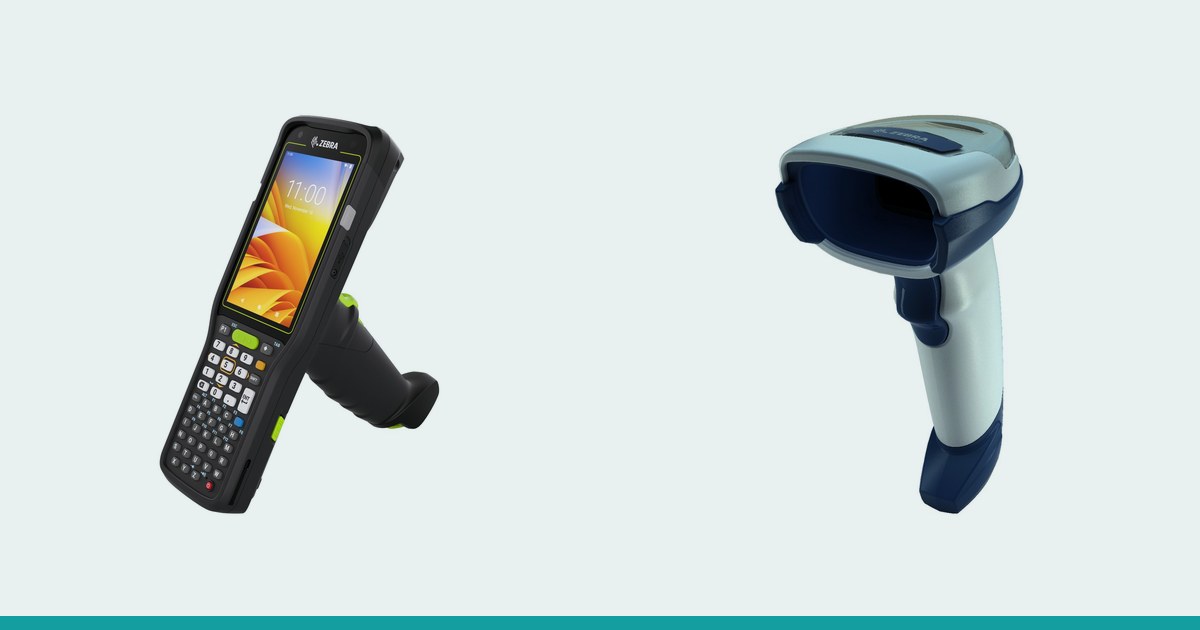
A smartphone-style terminal fits a pocket or holster, but the printer stays in the hand or on the belt. With a keyboard model such as the Zebra MC3400, the operator holds the terminal with both hands, and a compact 2" printer is more comfortable. Test the pair in motion: climbing into a vehicle, at the dock, wearing gloves. Also check that holders and covers do not block the charging connector.
5. Who starts the print job
There are three scenarios, and each changes how the app is built:
- Print after scanning: the operator scans the goods and the app prints the right label automatically
- Print on request: the operator taps a button on the terminal and picks the document
- Print from the server: the system sends the job straight to the printer over Wi-Fi
The first saves the most taps but requires the app to know which printer belongs to which terminal.
6. Checklist before ordering
- The app's printer language is supported by the printer
- The connection method (Bluetooth, Wi-Fi) matches the number of operators
- The printer width covers the largest document
- The pair has been tried together, on the move
- You know what happens when the printer runs flat: a spare or dock charging
For work scenarios, battery and media, see the article on mobile label printing in the warehouse and on delivery. If you start from the printer, the label printer selection guide also compares desktop and industrial options, and the mobile label printers (imprimante-etichete.md) are grouped by width.
Conclusion
Pick the process and document first, then the link (Bluetooth or Wi-Fi), then the width, and only then the models. Choose the terminal from the mobile terminals catalog or, for keyboard work, from the keyboard terminals. Request a quote and tell us which documents you print: we will help match the pair.